Free trial download of Video to Image Converter for Windows
Download and try Video to Image Converter for Windows for Free on your Windows 10 or Windows 11 Computer. Video File(s) Supported for Image Extraction are *.wmv, *.avi and *.mp4 Files. Once trial of the software has expired, you can pay USD 9.87 to Unlock Trial and use it for upto 3 Months on 1 Computer.
Each Time you Extract Image File(s) from the Video with Video to Image Converter for Windows, a New Sub Folder (named with Current Date and Time) is created Automatically in the Selected Target Folder to store Extracted Image File(s). The Extracted Video Frame or Image File(s) can be of Types *.png Files, *.bmp Files, *.jpeg Files or *.tiff Files. By default, the Extracted Images File(s) are of same Dimensions as the Video File, however you can Resize Image Files once you have extracted the Image Files.
The Free Trial of Video to Image Converter for Windows does adds Watermark to the extracted Image File(s). You can Unlock the Software Trial by paying in a small Activation Fees and Extract Image File(s) from the Video without Watermark. In case you are using a Macintosh, you can also try out Video to Image Converter for Mac which allows you to extract Image File(s) from Video File(s) on your Macintosh.
Features of Video to Image Converter for Windows
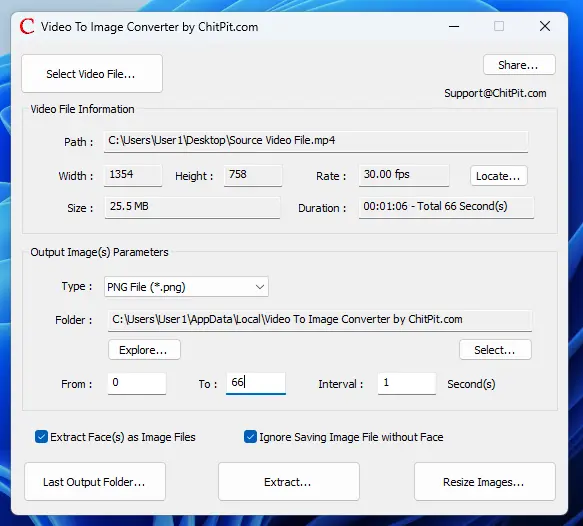
The Video to Image Converter for Windows is basically a single screen software allowing you to easily extract Image File(s) from Video File(s). Given below are various feature offered by the software utility.
- Extract Frames from Video File(s) on Windows 10 or Windows 11 Computer easily and quickly.
- The Extracted Image File(s) can be either in Bitmap, PNG JPEG or TIFF Image File Format.
- Dimensions, Duration and Size of Video File on Disk are displayed on the Software whenever a new Video File is selected with the help of Select Video File button.
- The Extracted Image File(s) from the Video can be stored in a Sub Folder of your Selected Folder.
- The Extracted Video Image File(s) can be extracted by specifying Time Interval and Start / Stop Time in the Video File.
- You can Resize Extracted Image File(s) by percentage with the help of Resize Images button.
- With the help of Last Output Folder, you can open the sub folder in which extracted Image File(s) were stored by this Image Extractor Software Utility.
- You can also extract Faces from selected Video File and optionally skip saving of Image Files when no Face is detected in the extracted image file.